A new Wi-Fi SoftAP setup feature is now available for TSTAT10.
This feature is used when the controller does not have valid Wi-Fi settings or cannot connect to the configured network. In that case, the controller will start a temporary Wi-Fi hotspot:
SSID: T3_Admin
Password: T3_Admin
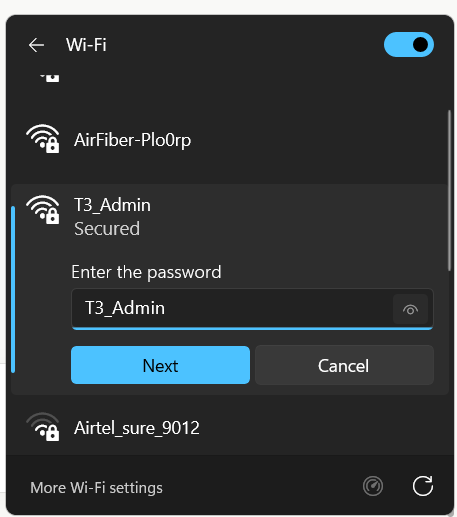
To configure Wi-Fi:
- Connect your phone or laptop to T3_Admin.
- Open a browser and go to:
- Click Scan Wi-Fi.
- Select your Wi-Fi network.
- Enter the password and click Save & Connect.
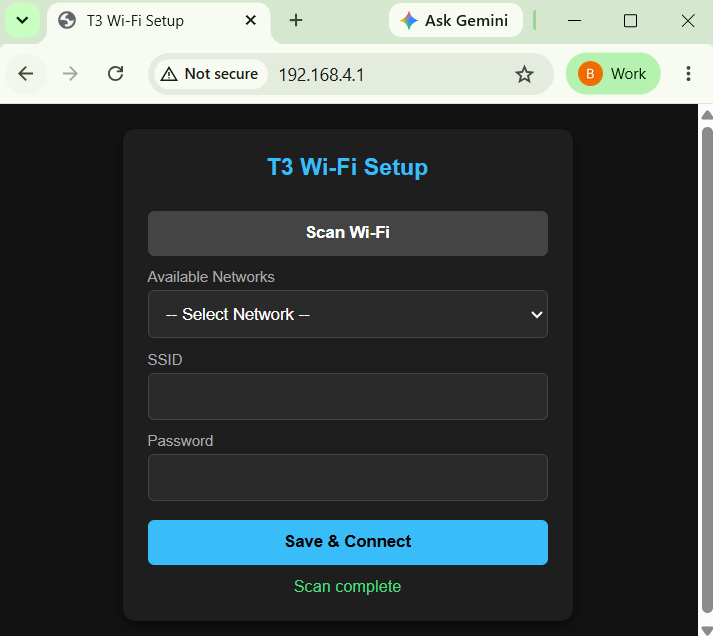
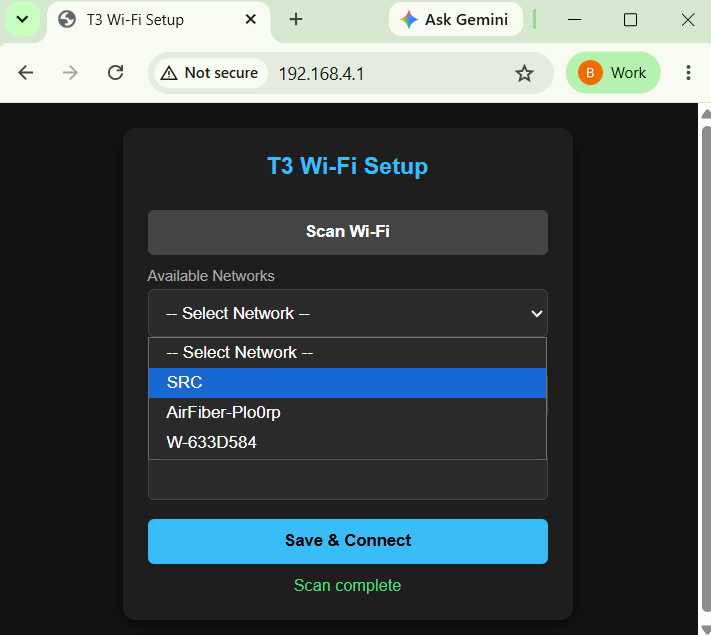
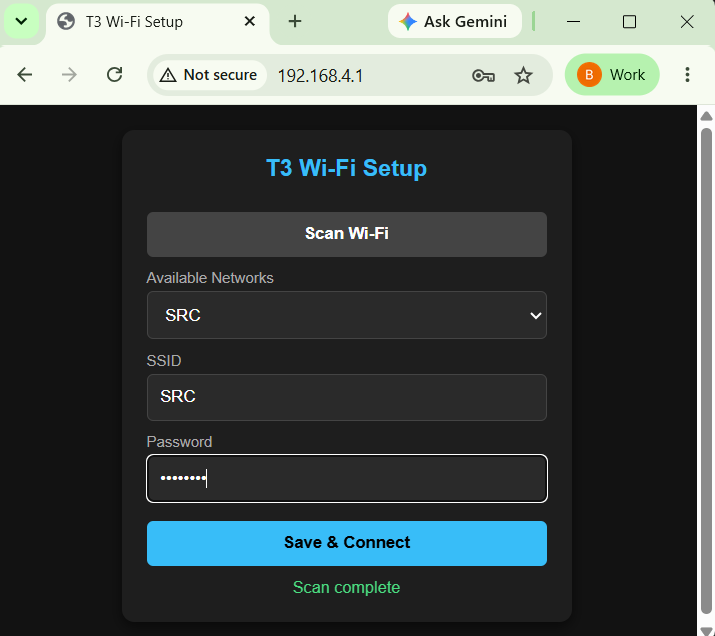
The controller will save the settings and reboot. After about 30 to 60 seconds, it should connect to the selected Wi-Fi network and receive an IP address from the router.
The setup page is only available while the controller is running in SoftAP mode. If the controller is already connected to Wi-Fi, the setup page will not be available.
To test the feature on a controller that is already connected, enter an invalid SSID/password or clear the saved Wi-Fi settings, then reboot the controller.
If the browser shows “Header fields are too long,” try opening the page in an Incognito or Private window, or clear the browser data for the controller address.