Hi everyone,
T3000 now has a new interface, and it opens in your browser. It is the same T3000 — same toolbar, same devices, same data — so everything you already work with is there: Inputs, Outputs, Variables and Trend Logs.
New capabilities that come with it:
- Haystack tags — tag devices and points, and let auto-tagging suggest the rest
- MCP tools and the AI Assistant — ask questions about your system in plain language
- The new Designer — HVAC schematics and LVGL / EEZ Studio, drawn in the browser, deployed to the device
- Shared Center DB — trend logs and device data in one central Microsoft SQL Server database shared by several T3000 PCs
This is a beta release, so you can try the new interface early. Any feedback — what works, what does not, what could be improved — helps us make it better.
Please do not use it as your sole tool for live buildings yet. Try it first on a spare PC or a test panel. Installing the beta does not change your existing T3000 installation.
At a glance
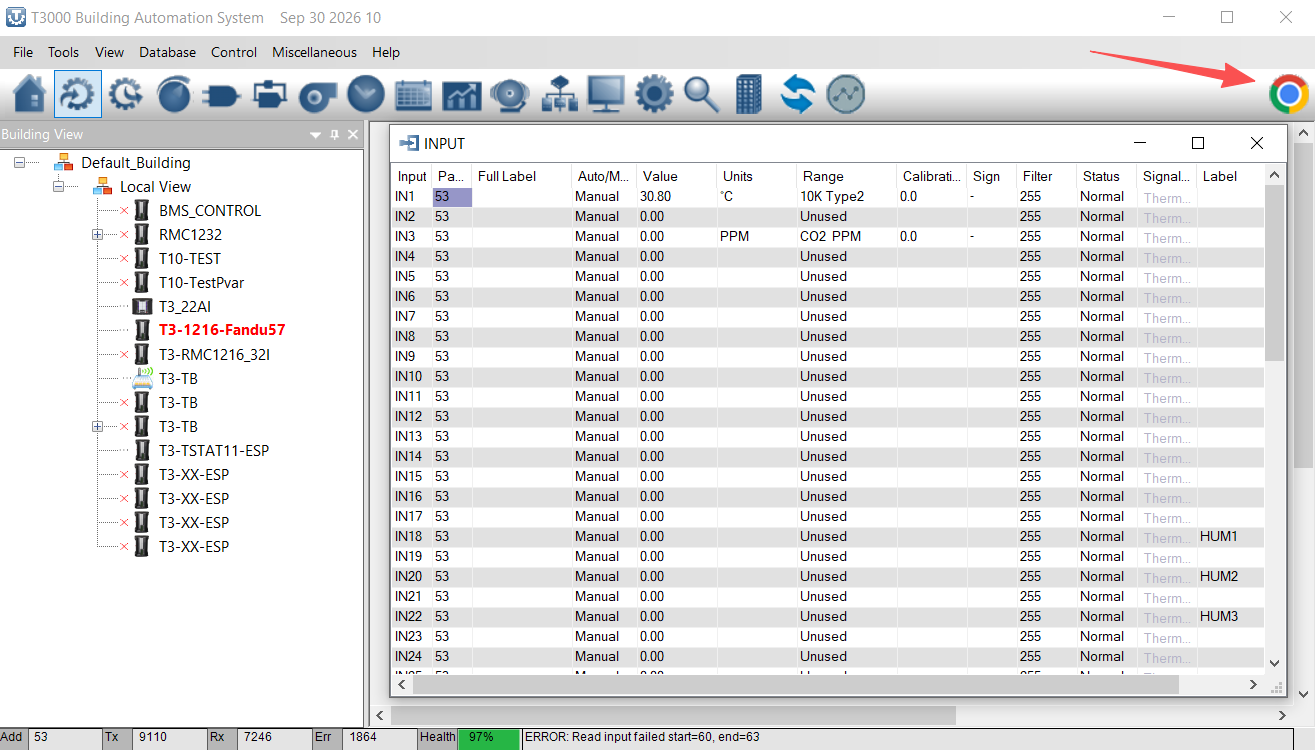
- One click to open it: the Chrome button at the right end of the T3000 toolbar.
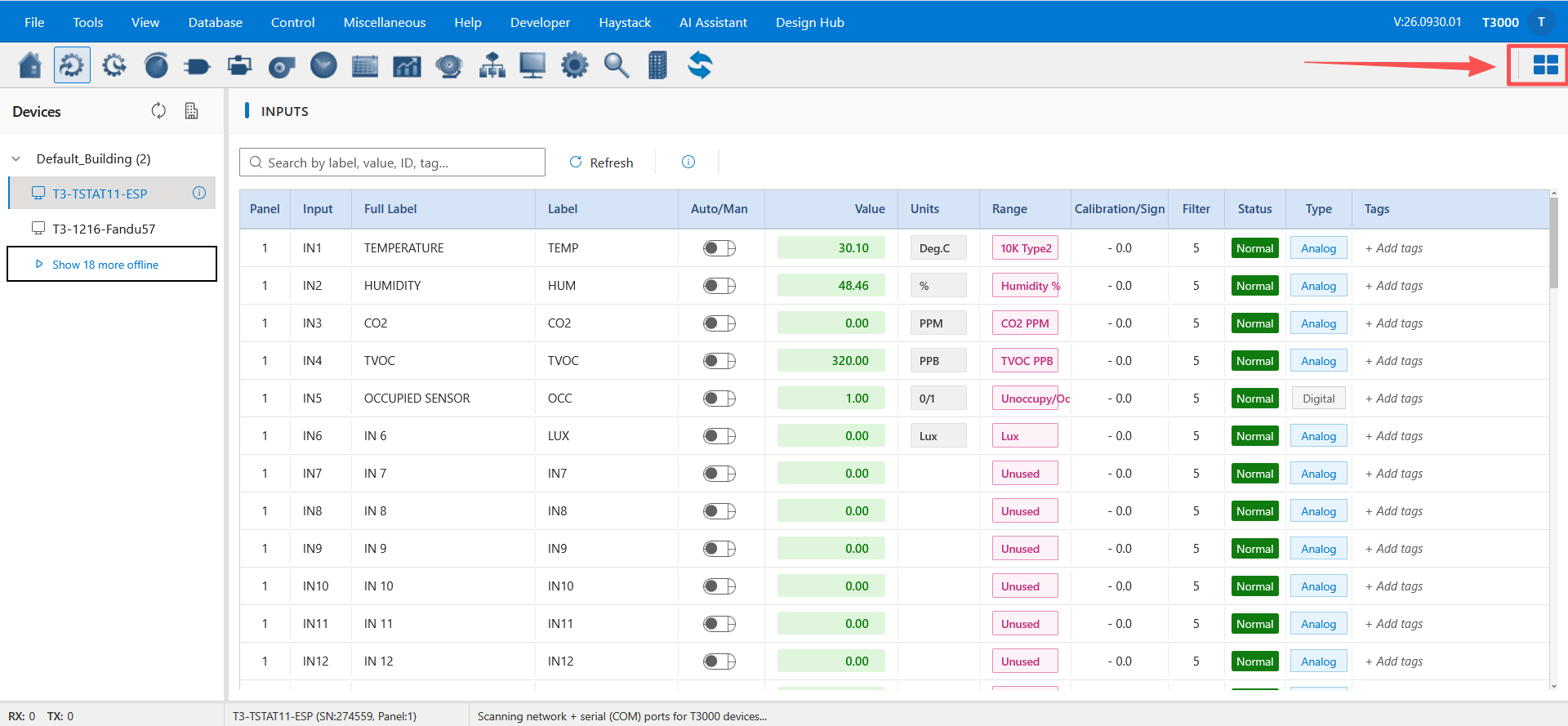
- One click back: the Windows icon in the new interface returns you to the T3000 window.
- Nothing to install: copy the beta folder from the network drive and run
T3000.exefrom there. - Your current T3000 and its data stay as they are — the beta is a separate copy
Your first five minutes
- Open the beta and click the Chrome button in the toolbar.
- Check that Inputs lists one of your devices with the right name and points.
- Edit one value and commit it — on a test panel if you can.
- Click the Windows icon to return to the T3000 window.
That is the whole round trip. Everything after this section is detail you can read as you need it.
1. How to open the new interface
Two ways to open it:
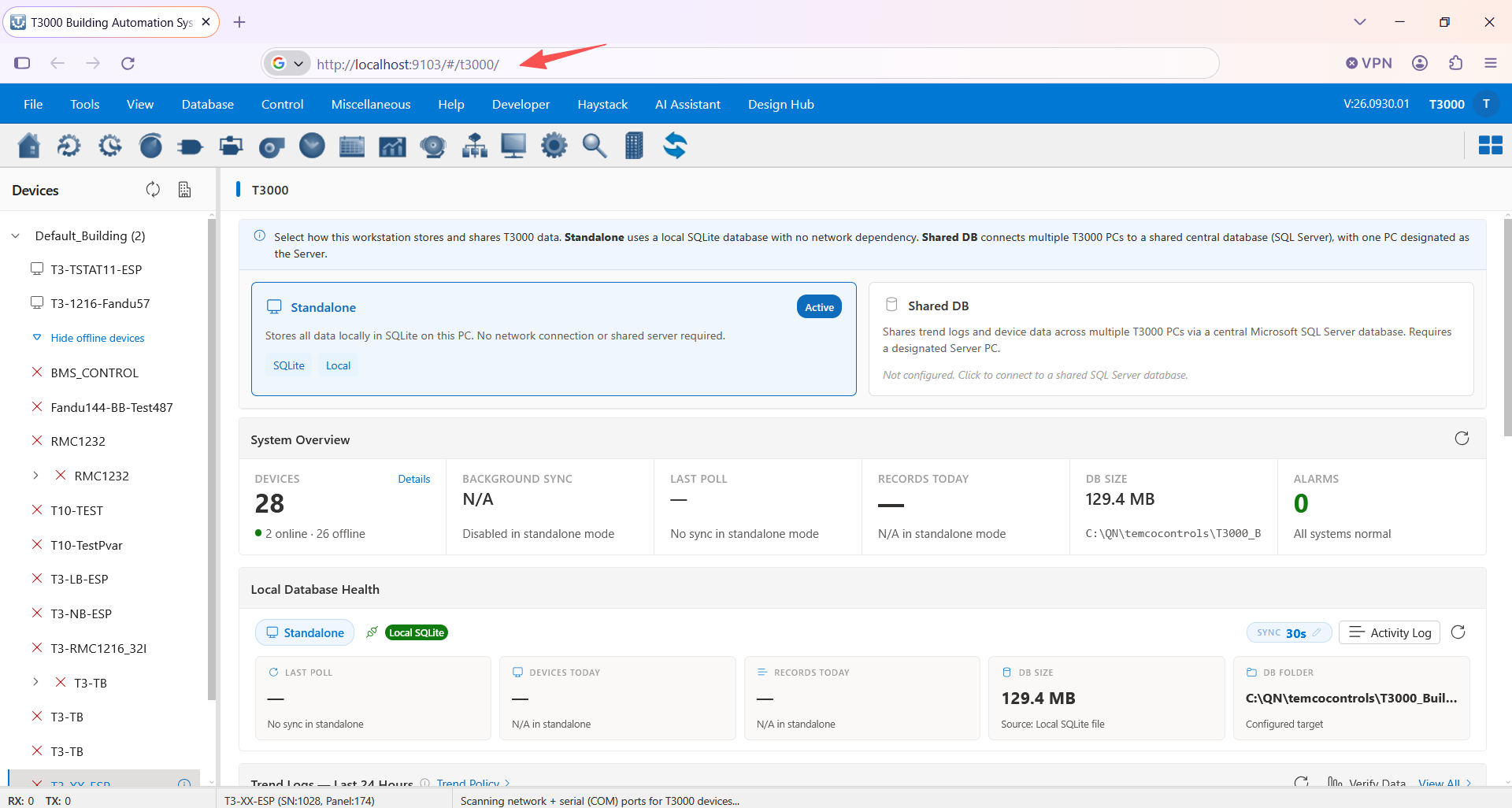
- From the address bar — with the beta running, open
http://localhost:9103/#/t3000/in any browser. From another PC on the same network, use this PC’s address instead oflocalhost, for examplehttp://192.168.1.50:9103/#/t3000/(ipconfigshows the address; the port stays9103). - From the toolbar — click the Chrome button at the right end of the T3000 toolbar. T3000 minimises itself and the new interface opens in your browser (Chrome, Edge or Firefox — whichever you have installed). The browser opens on a profile that belongs to T3000, so it does not mix with your normal browsing tabs or bookmarks.
- Clicking the button again does not open another window: it brings the same window back, maximised.
To go back to T3000, click the Windows icon in the new interface’s header. It restores and focuses the T3000 window and closes the browser window that T3000 opened.
What you need
- Windows 10 or 11, and Chrome, Edge or Firefox installed.
- Nothing from the internet: the beta serves everything from your own PC (port
9103). - Your T3000 installation keeps running as it does today — the beta is a separate copy.
2. Where to get the beta
The beta is on OneDrive — the link opens in a new tab:
- Unzip T3000Beta.zip to a local disk (e.g.
C:\T3000-Beta\). - Run
T3000.exefrom that new folder. Do not copy it over your production installation. - Click the Chrome button in the toolbar (or open
http://localhost:9103/#/t3000/). - The version is shown in the top bar of the new interface (e.g.
V:26.0930.01) — that is the number to quote if you report something.
3. What to try — by category
Each section has a short summary, where to find it, and the detailed document.
| Category | In the new interface | Detailed document |
|---|---|---|
| Inputs, Outputs, Variables | Inputs · Outputs · Variables | Data points |
| Trend Logs (new) | Trend Logs · Trend Policy · Trends ▸ Chart | Trend Logs |
| Haystack tags | Haystack Tags · Auto-Tagging | Haystack & MCP |
| MCP tools + AI Assistant | AI Assistant ▸ MCP | MCP — VS Code Copilot |
| New Designer — HVAC | Design Hub ▸ HVAC | Design Hub |
| New Designer — LVGL / EEZ Studio | Design Hub ▸ LVGL 9.5 · LVGL with Flow 9.5 | EEZ Studio |
| Shared Center DB | Database ▸ Database Configuration | Shared Center DB |
3.1 Inputs, Outputs, Variables
The everyday point lists, as fast sortable tables with search. Sort by a column, search for a point, edit a value and commit it — the same works for outputs and variables.
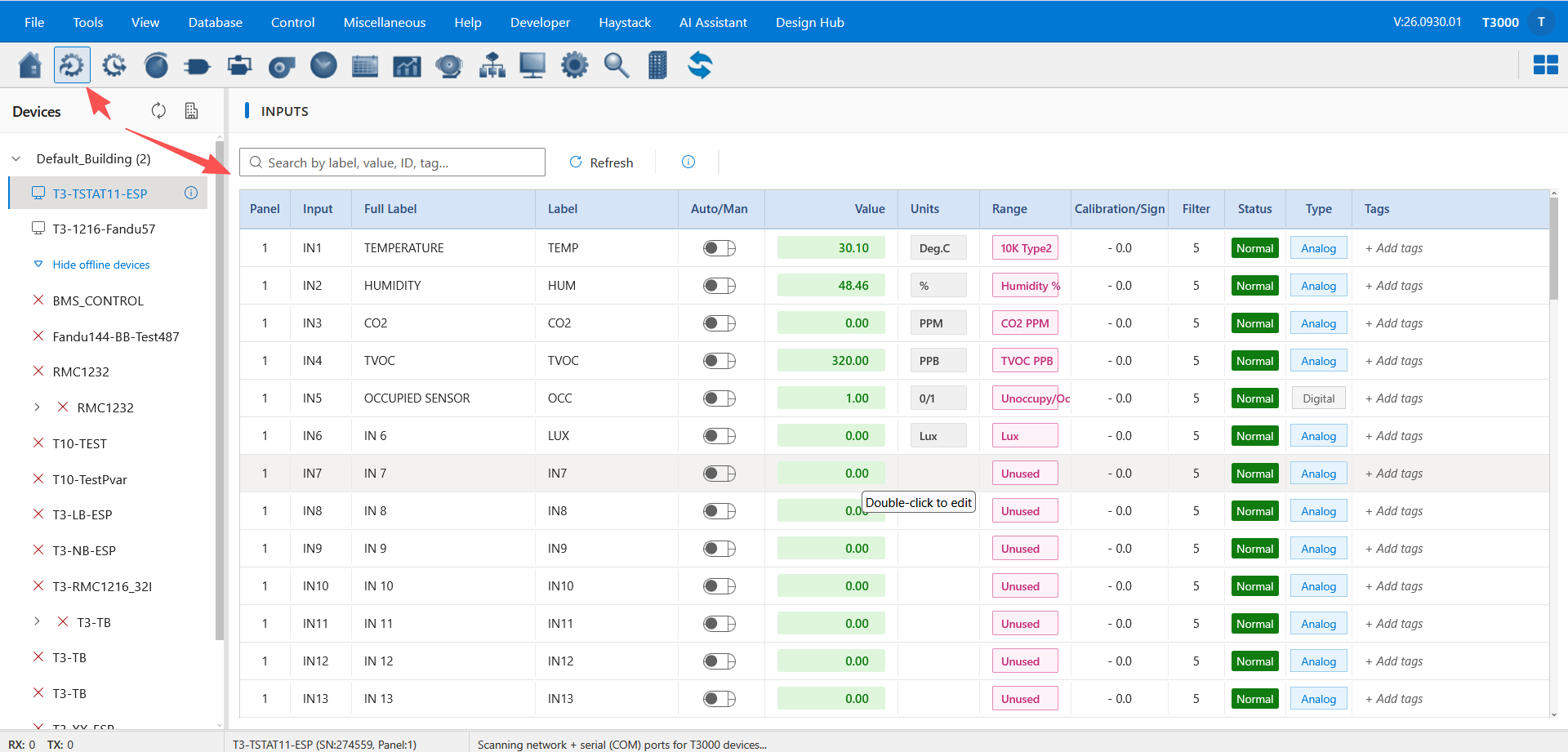
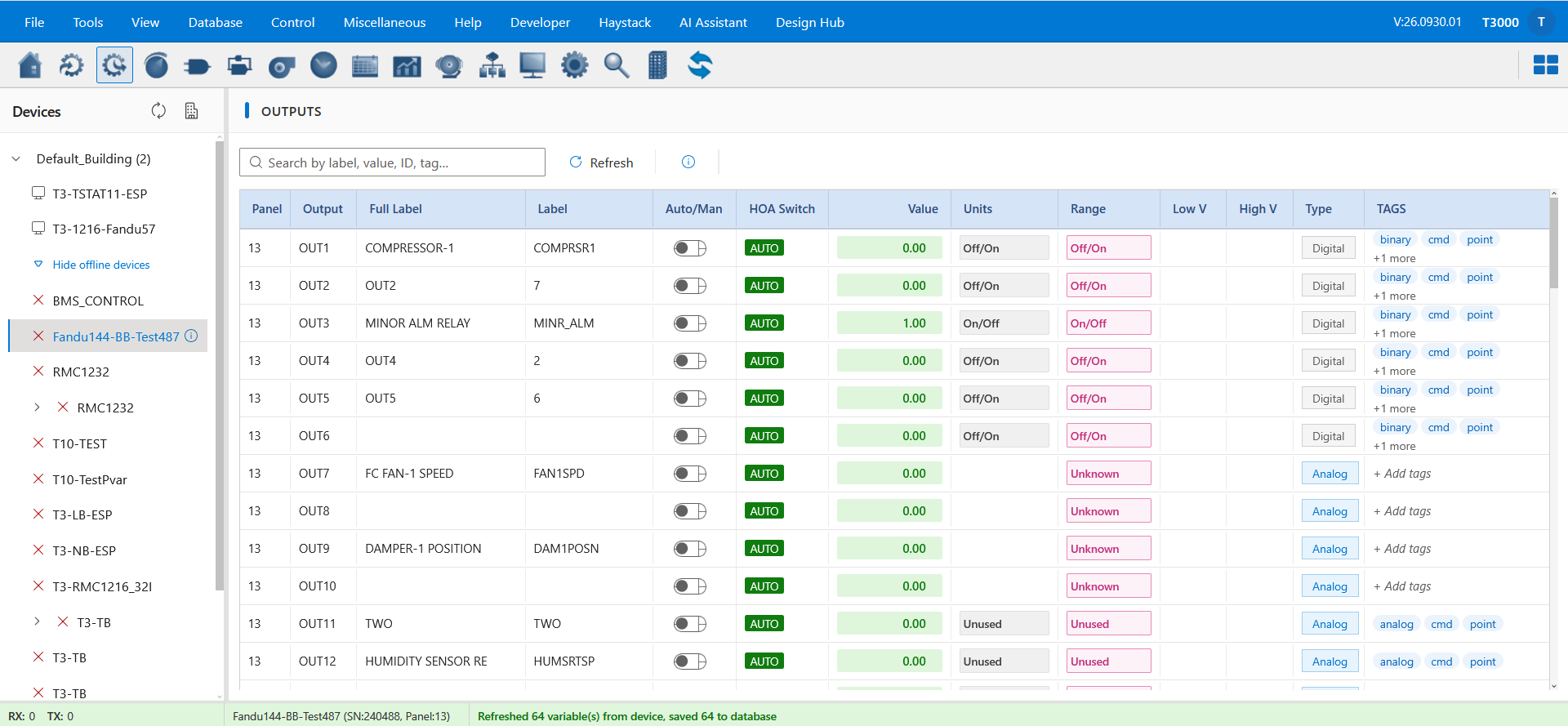
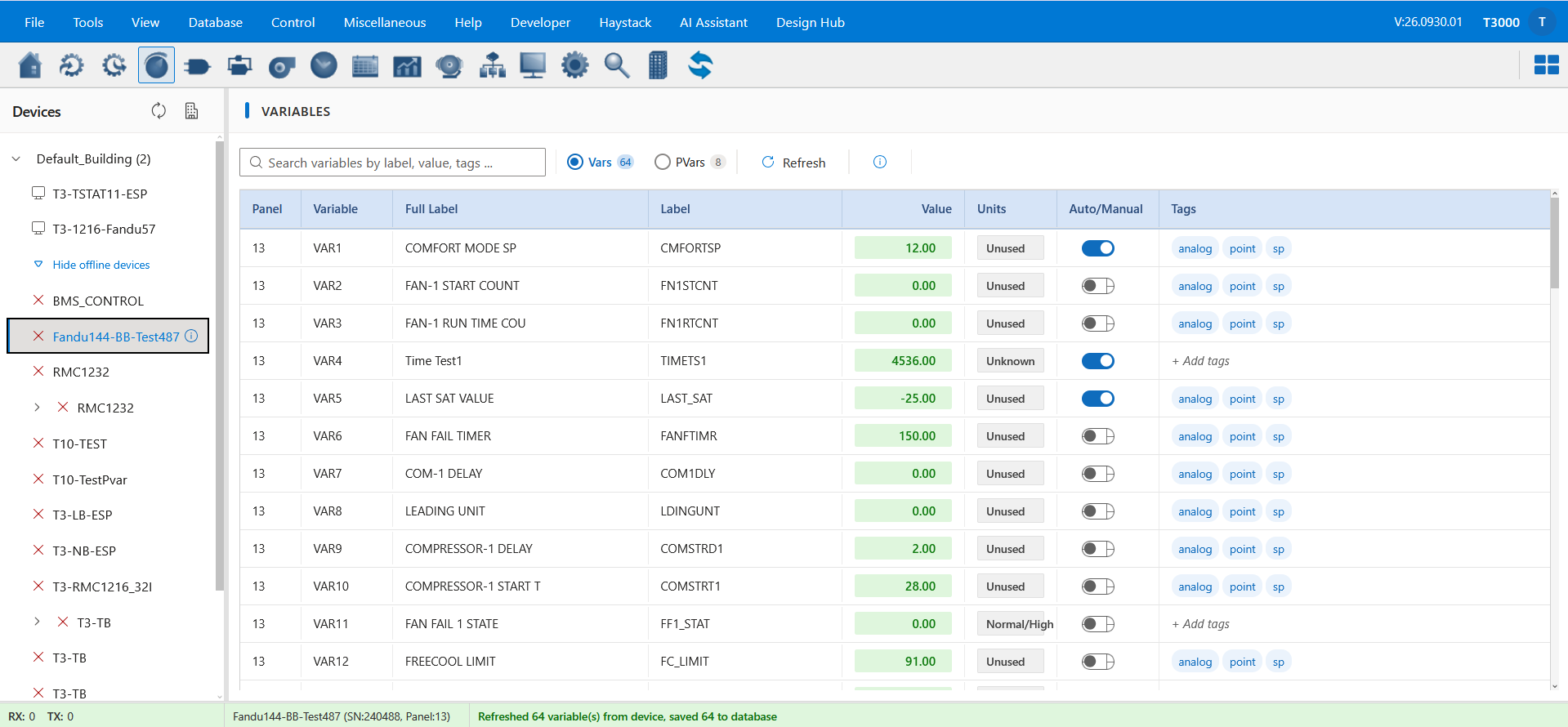
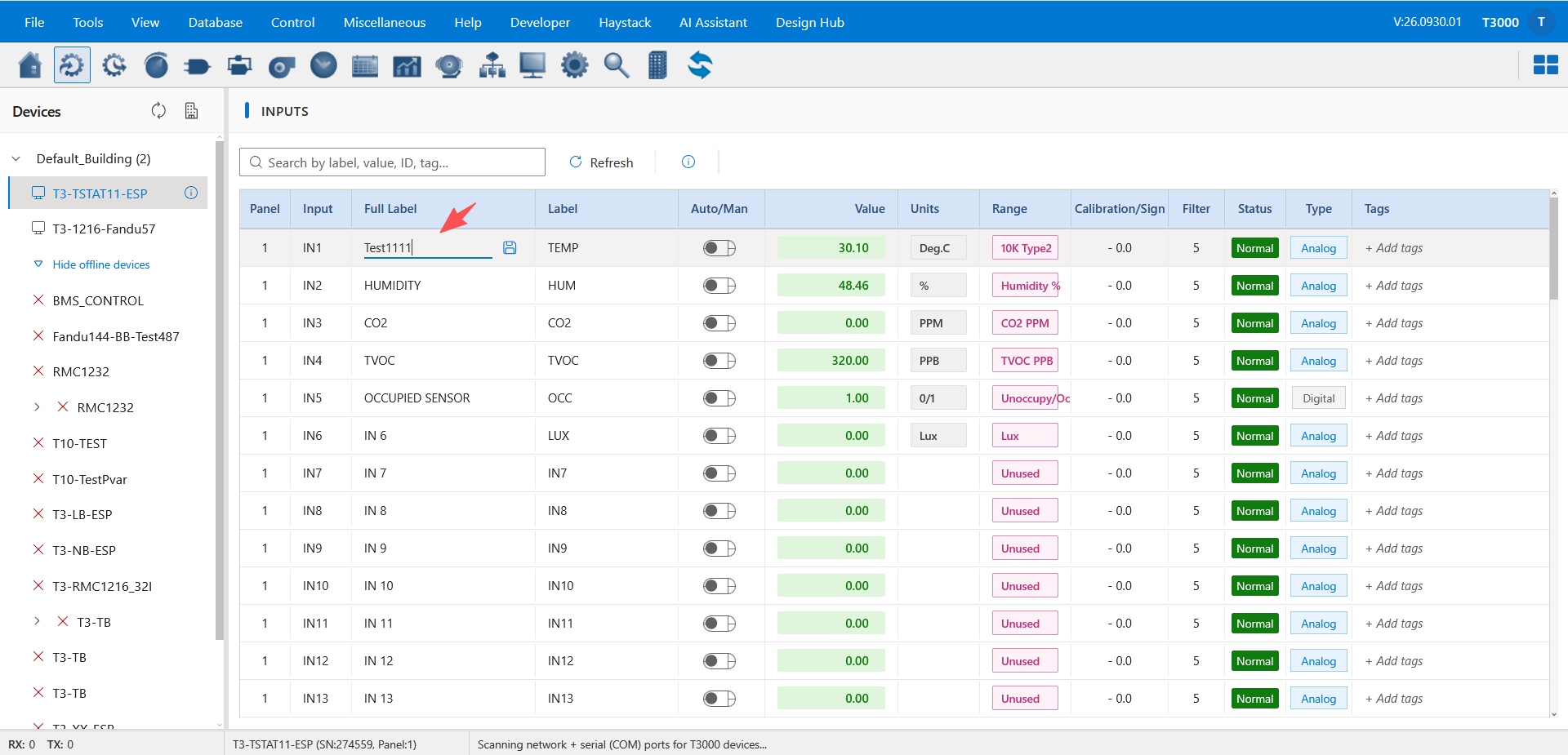
Docs: Inputs. In the beta: Documentation ▸ Data Points.
3.2 Trend Logs (new)
The new trend logging: a trend centre, trend policies (what gets logged and how often) and the new chart. Start a trend on an input, set the interval and samples, watch it collect, then open it in the chart and change the range.
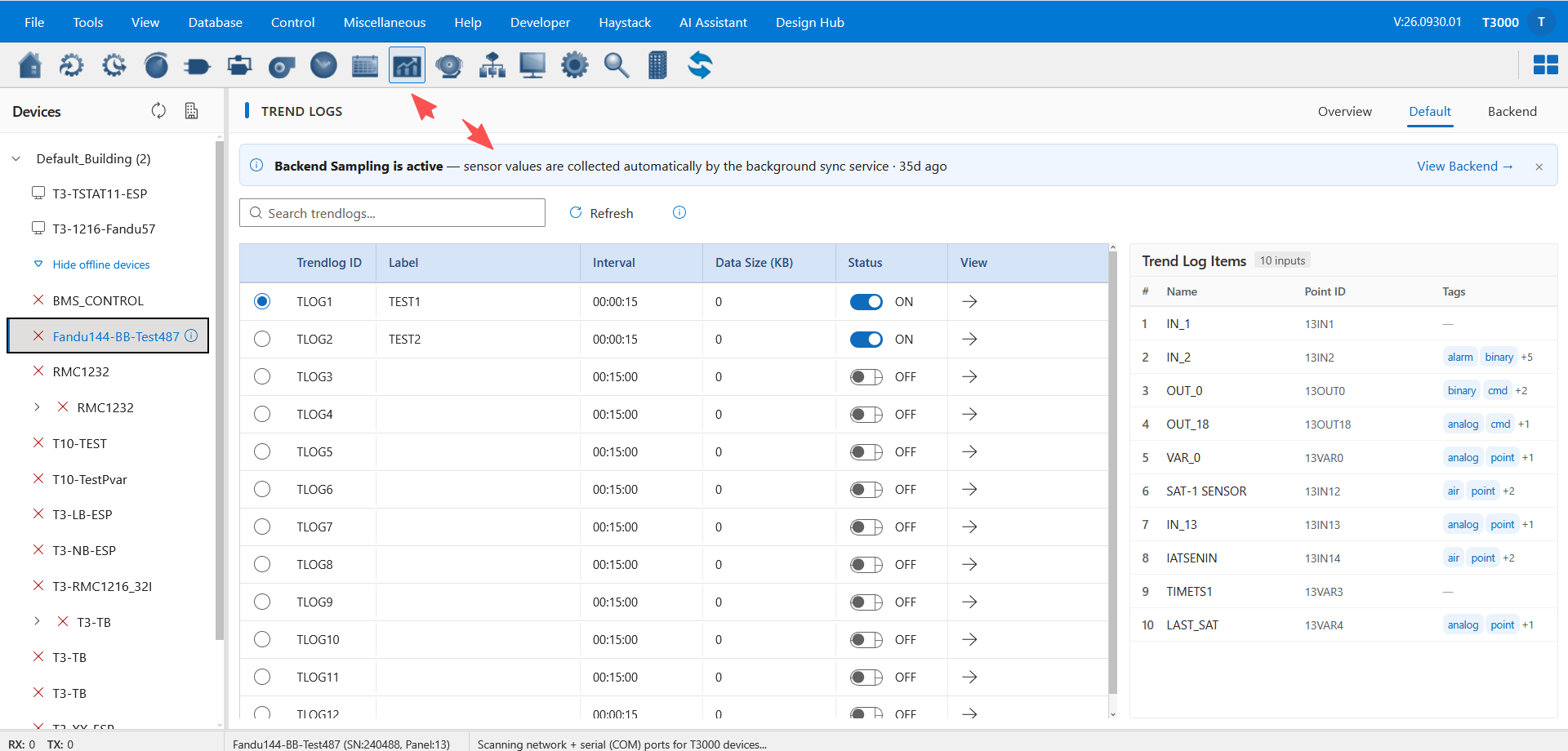
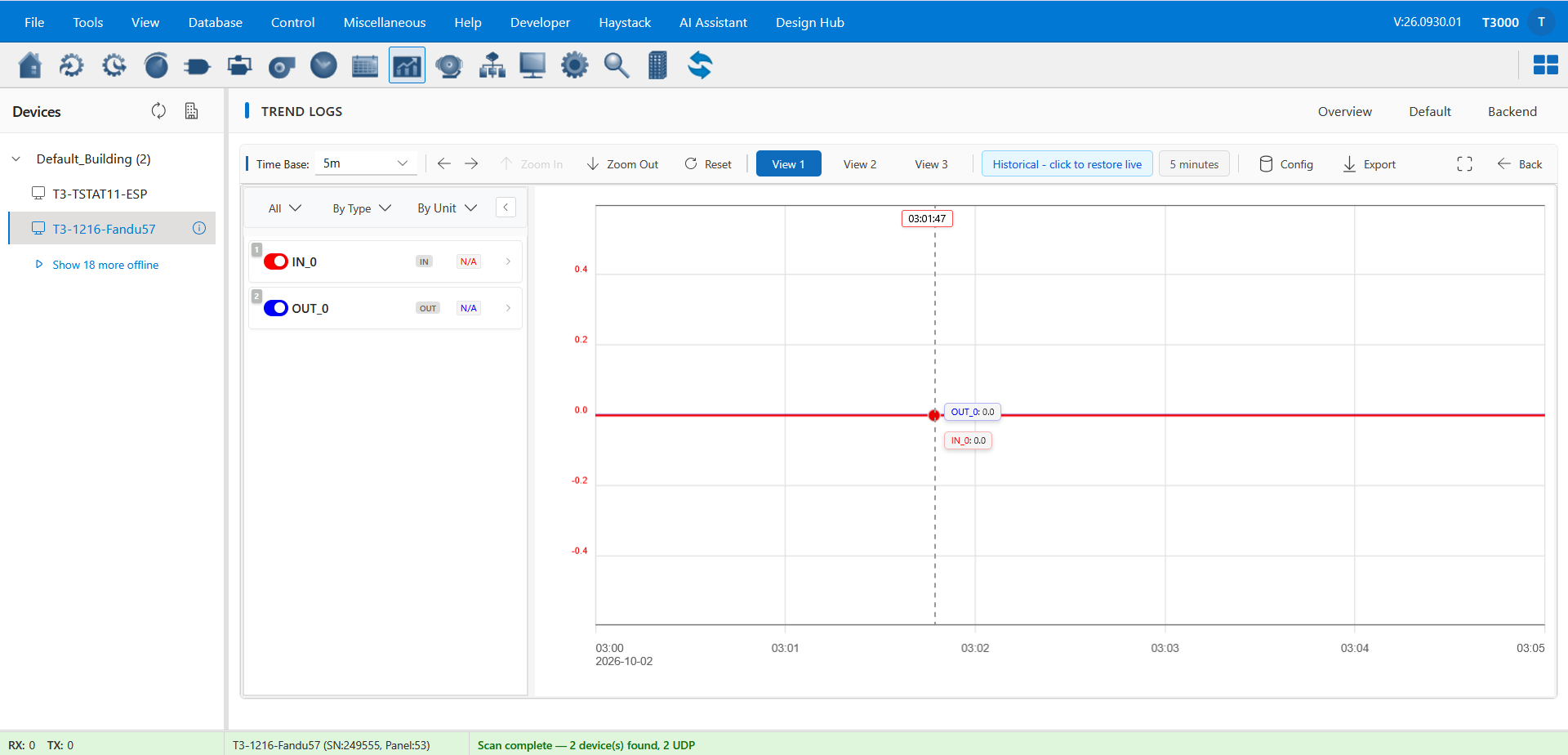
Docs: Trend Logs. In the beta: Documentation ▸ Features ▸ Trend Logs.
3.3 Haystack tags
Haystack tagging for devices and points, plus auto-tagging that proposes the tags for you. Tag a device, review the suggestions, then search or filter by a tag.
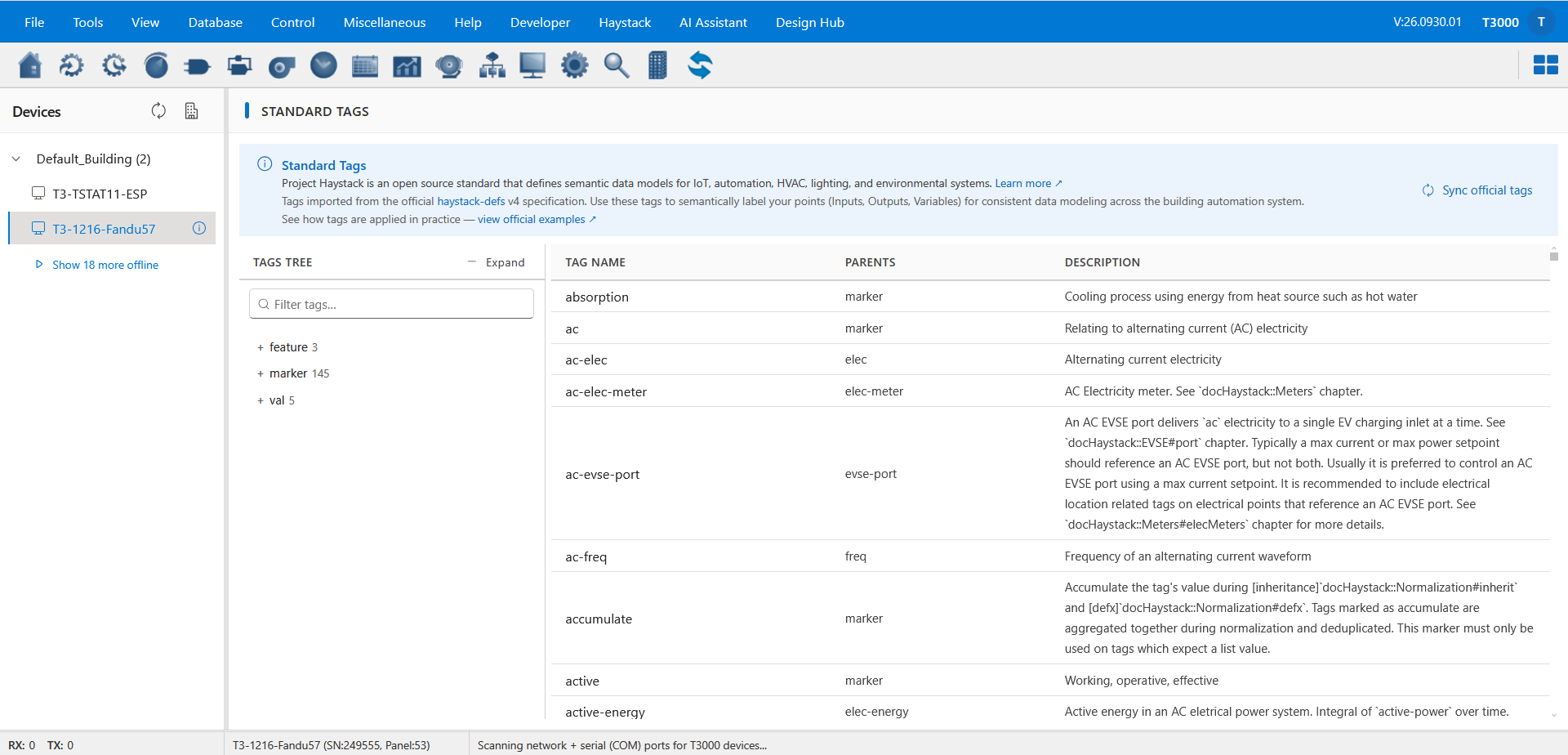
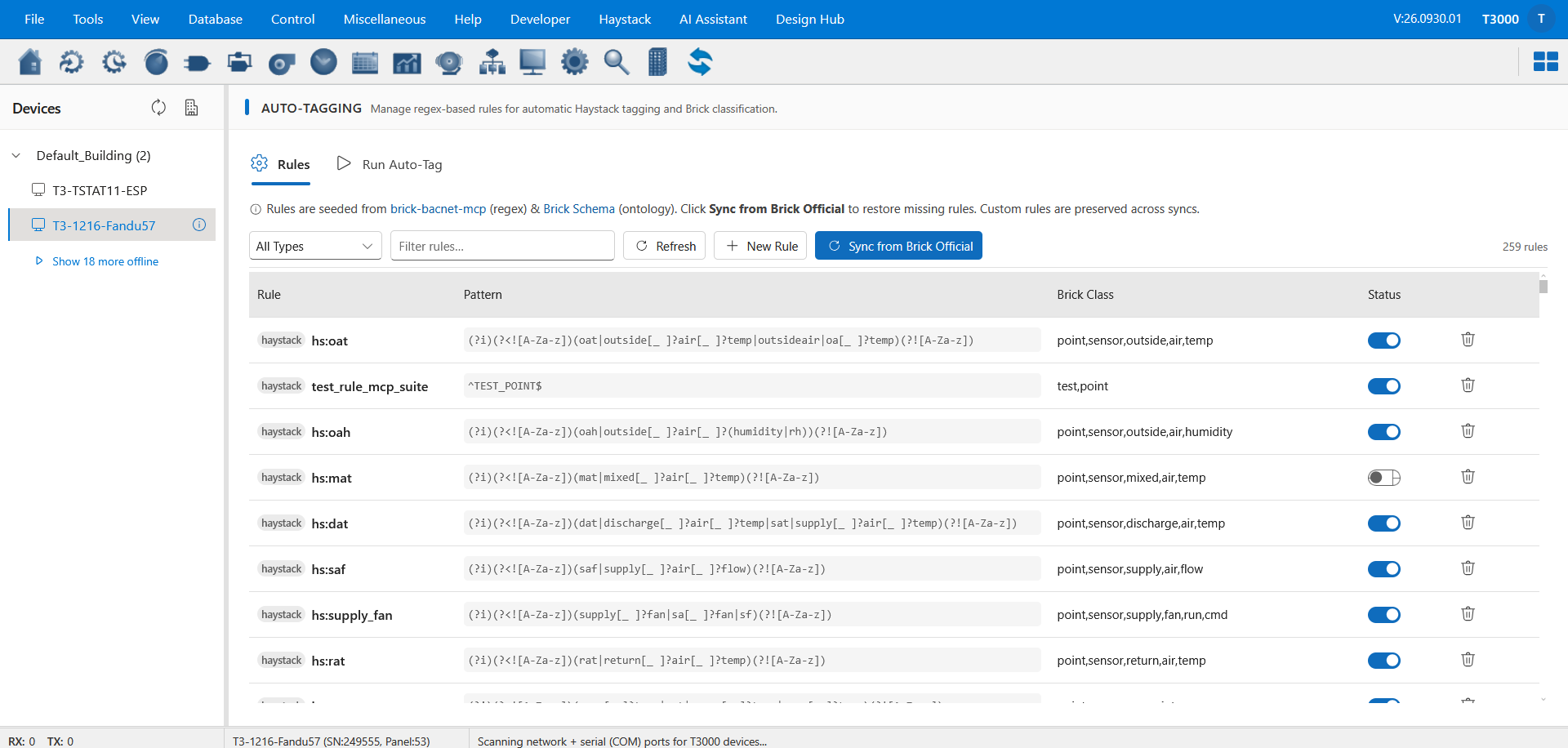
Docs: Haystack tags. In the beta: Documentation ▸ Haystack & MCP.
3.4 MCP tools and the AI Assistant
The MCP (Model Context Protocol) tools expose your T3000 system to an AI assistant, which can answer questions about points, trends and devices and help you configure them. Ask it about a device (for example “what is the supply air temperature on SN …”), and check the tool list and settings on the MCP page.
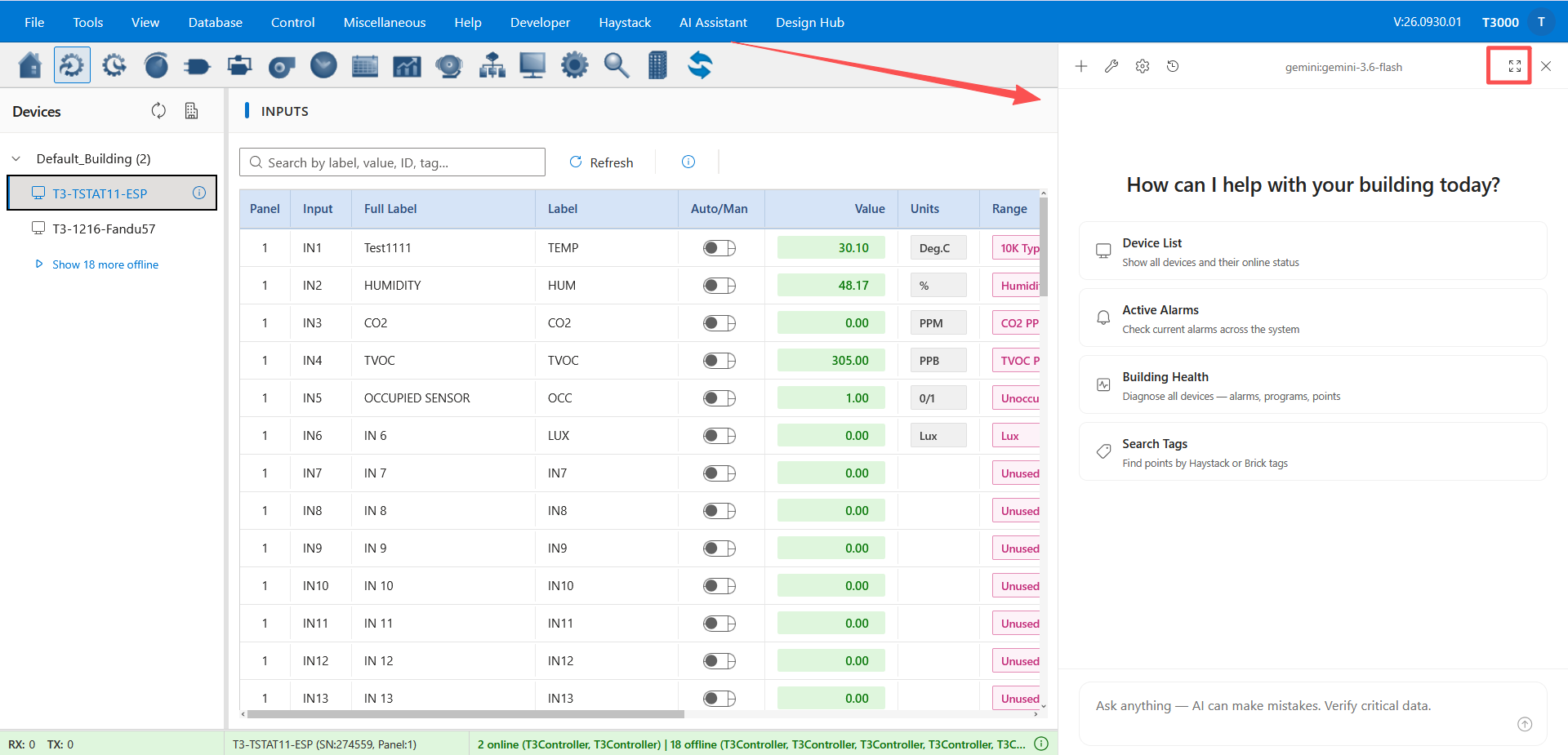
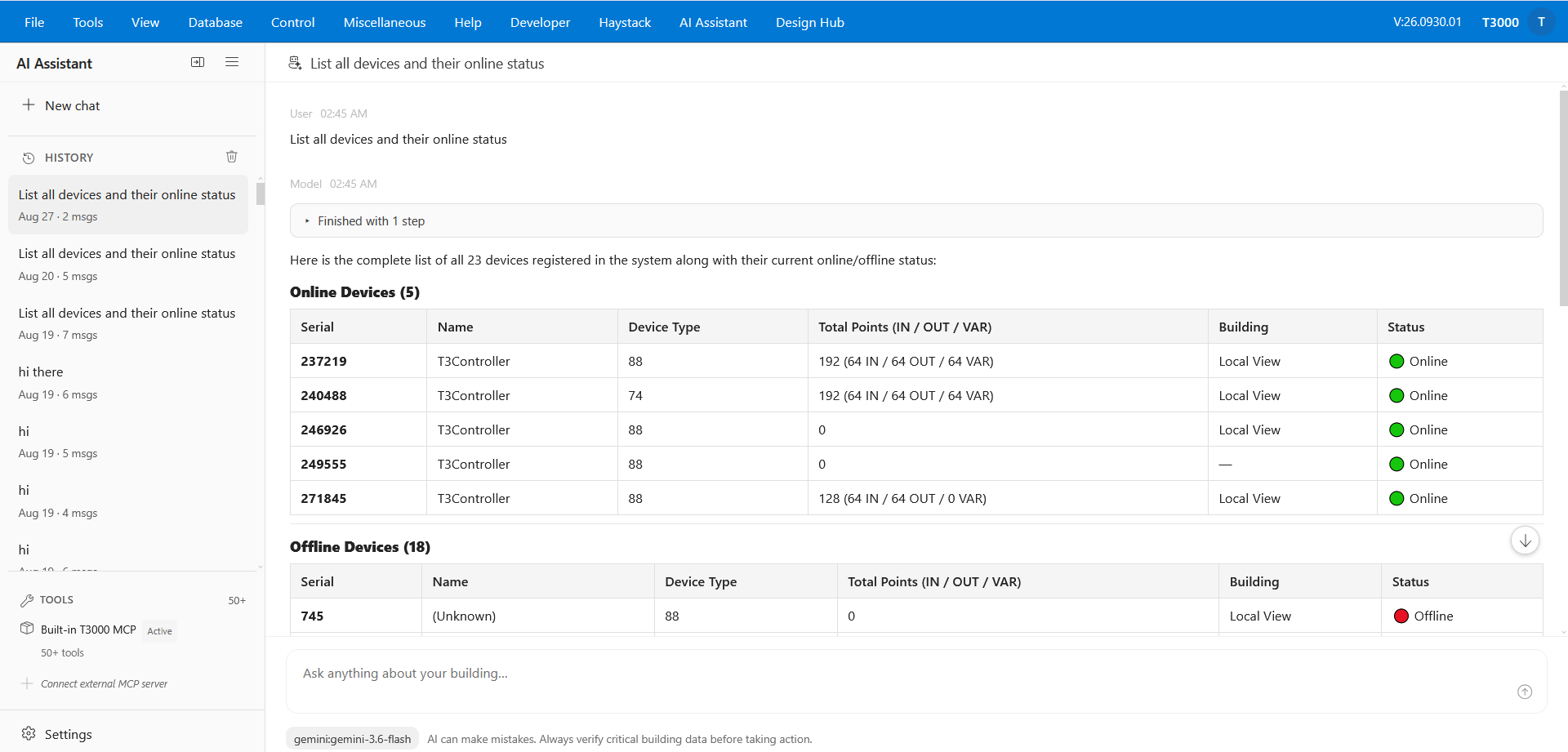
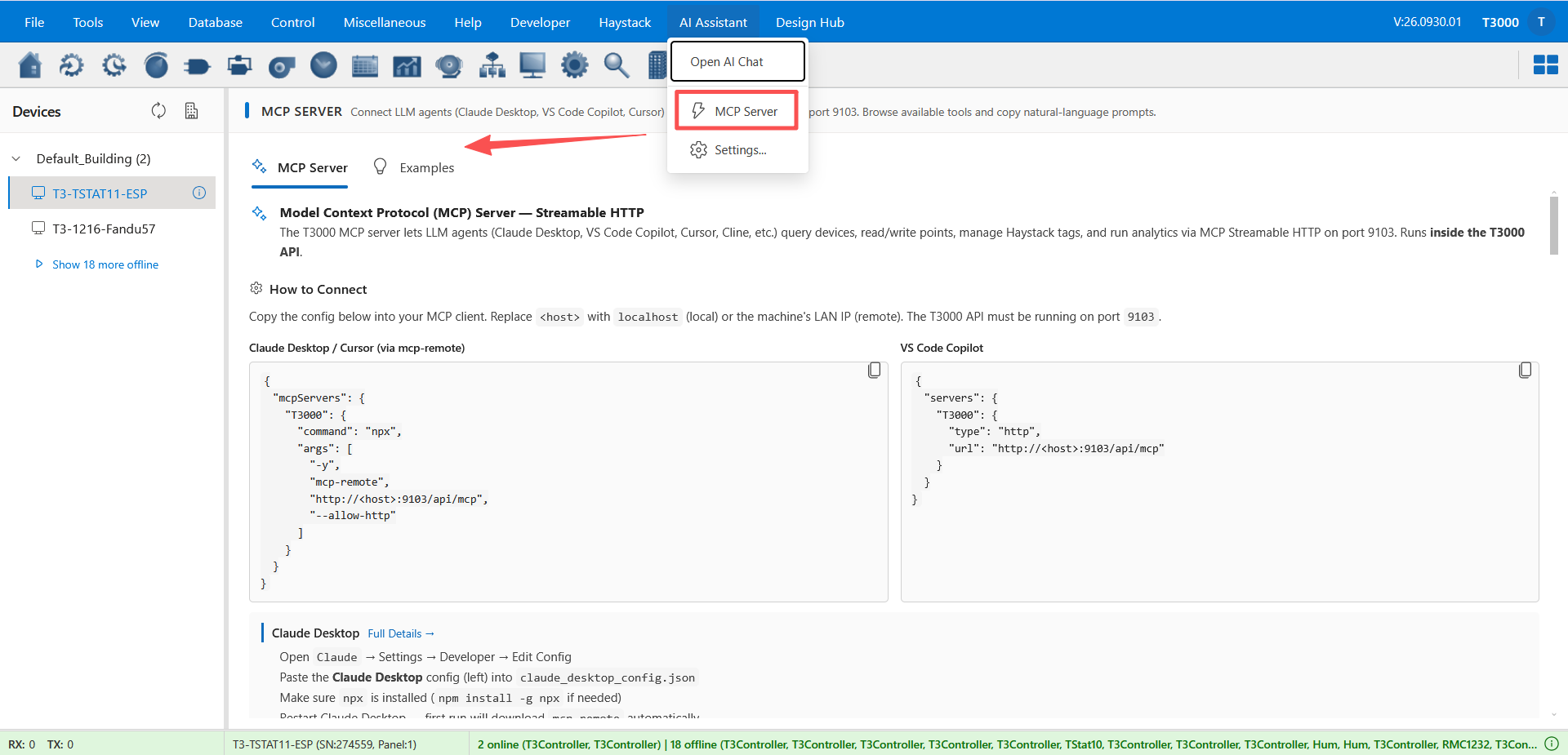
Docs: MCP — VS Code Copilot. In the beta: Documentation ▸ Haystack & MCP.
3.5 The new Designer — HVAC and LVGL / EEZ Studio
Your graphics and embedded UI projects, made in the browser and deployed to the device. The Design Hub is the dashboard: create a drawing by type, pick the device, then edit and deploy. HVAC drawings are schematics for a device’s graphic slot (1–8); LVGL 9.5 projects (or LVGL with Flow 9.5) open in the EEZ Studio editor.
A drawing belongs to one device + one graphic slot — the hub tells you when a slot is already taken, so you can open the existing drawing instead of overwriting it.
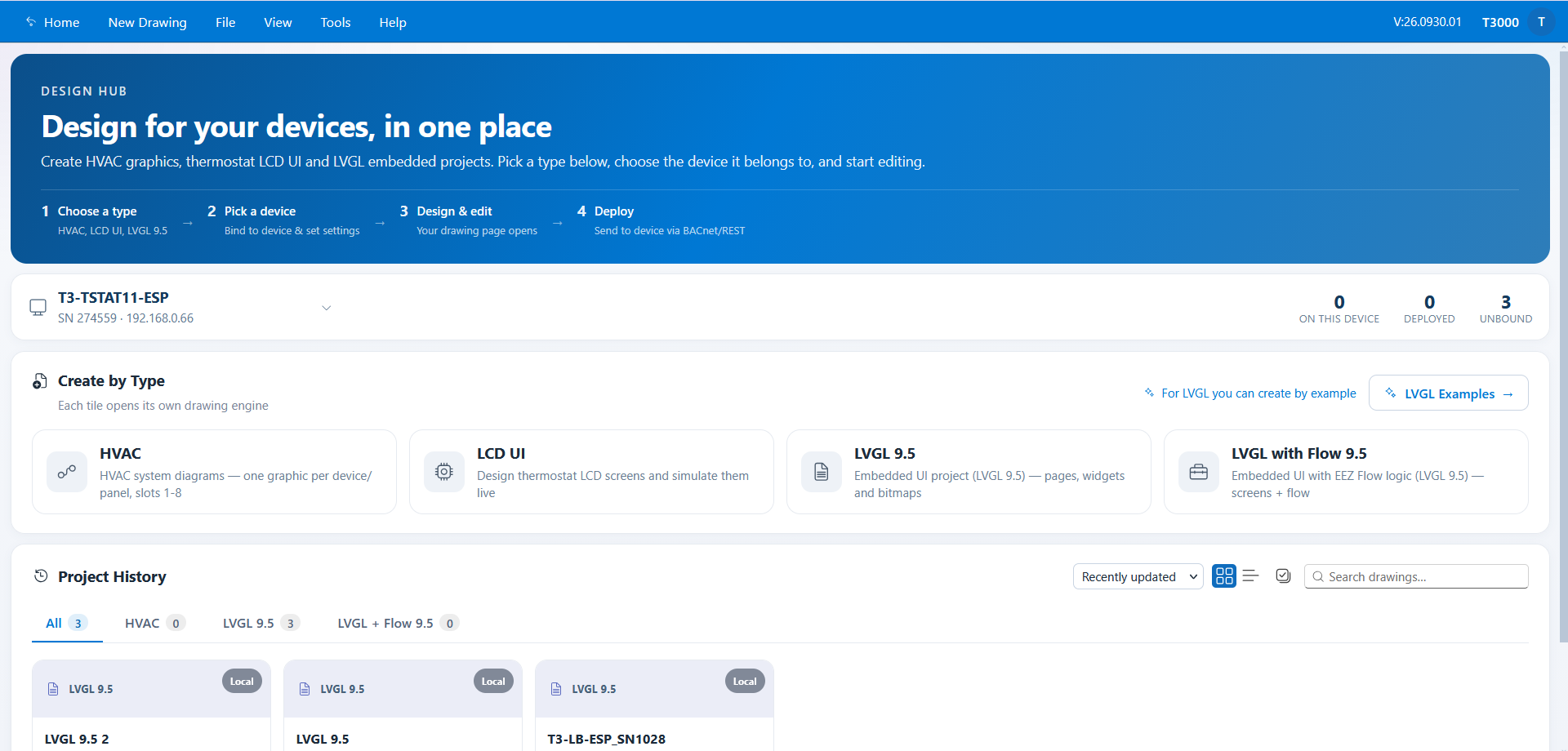
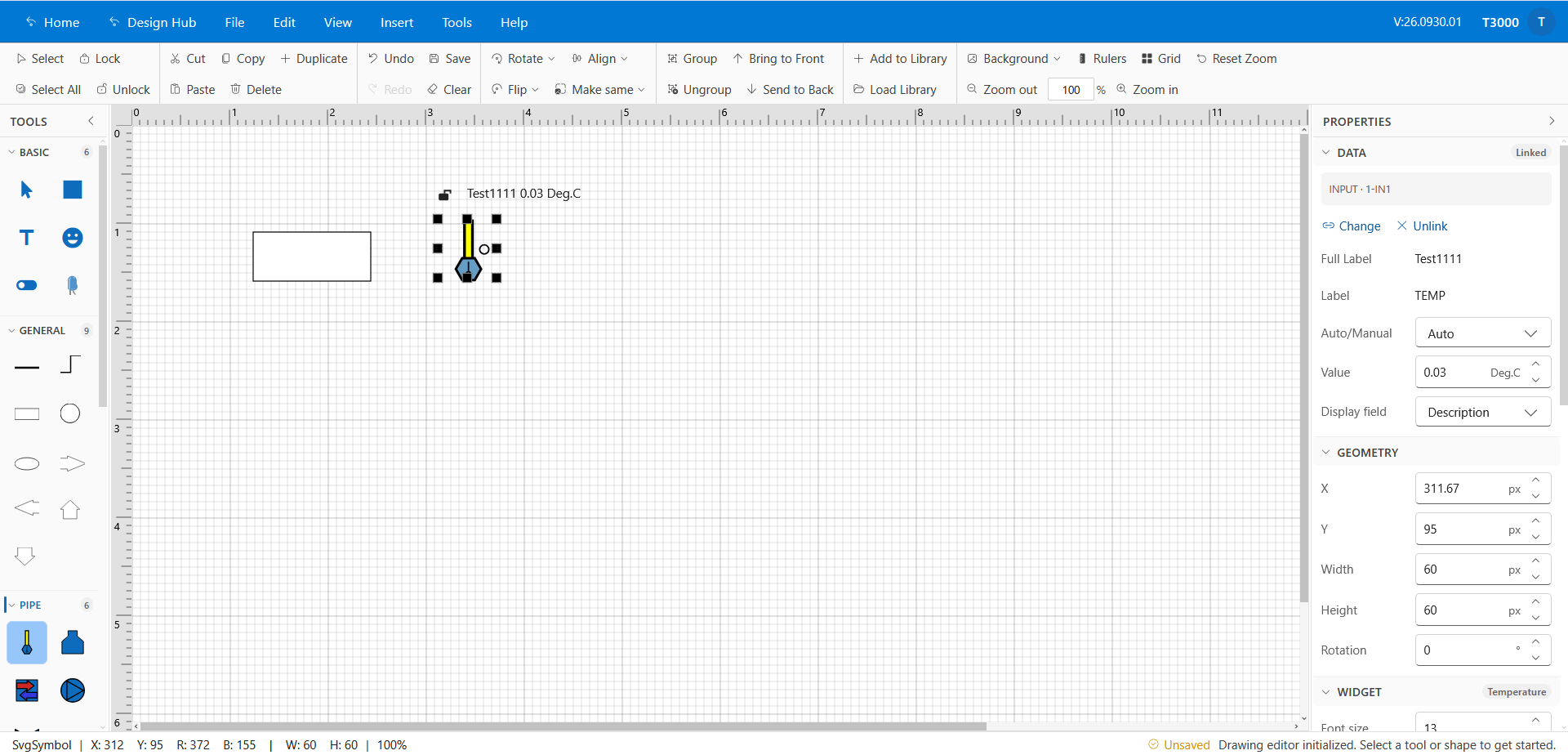
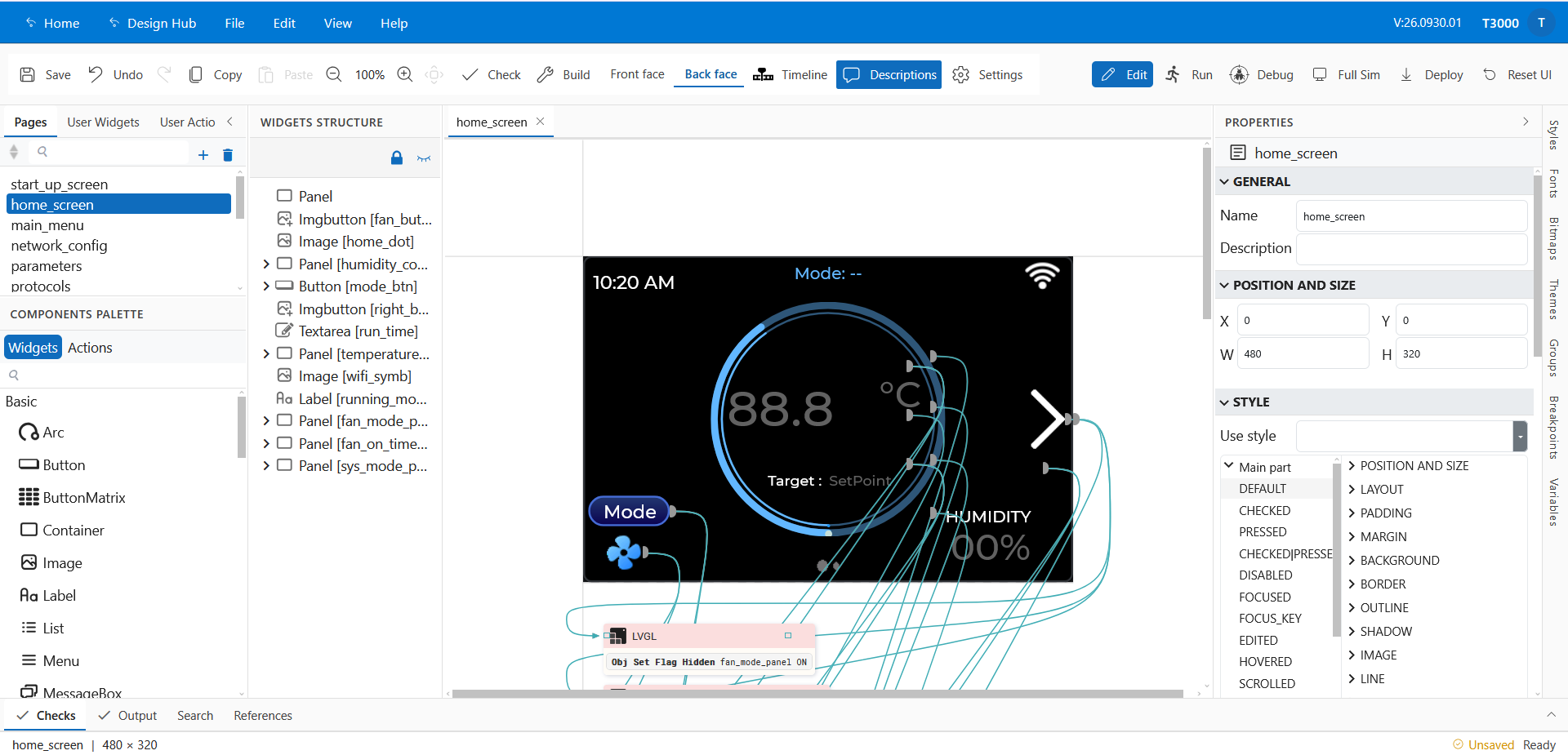
Docs: Design Hub (HVAC), EEZ Studio manual (LVGL / EEZ Studio). In the beta: Documentation ▸ Design Studio (Tstat11).
3.6 Shared Center DB — one database for the whole network
The trend logs and device data of several T3000 PCs kept in one central Microsoft SQL Server database, instead of every PC keeping its own copy — the reason a trend started on one PC can be read from another. Install SQL Server Express (25–40 minutes, guide below), enable TCP/IP, then point T3000 at that server in Database ▸ Database Configuration and start a trend. Open the same trend from a second PC to confirm both PCs write into the central database.
Note: SQL Server Express allows up to 10 GB per database — if you expect more, use SQL Server Standard or higher.
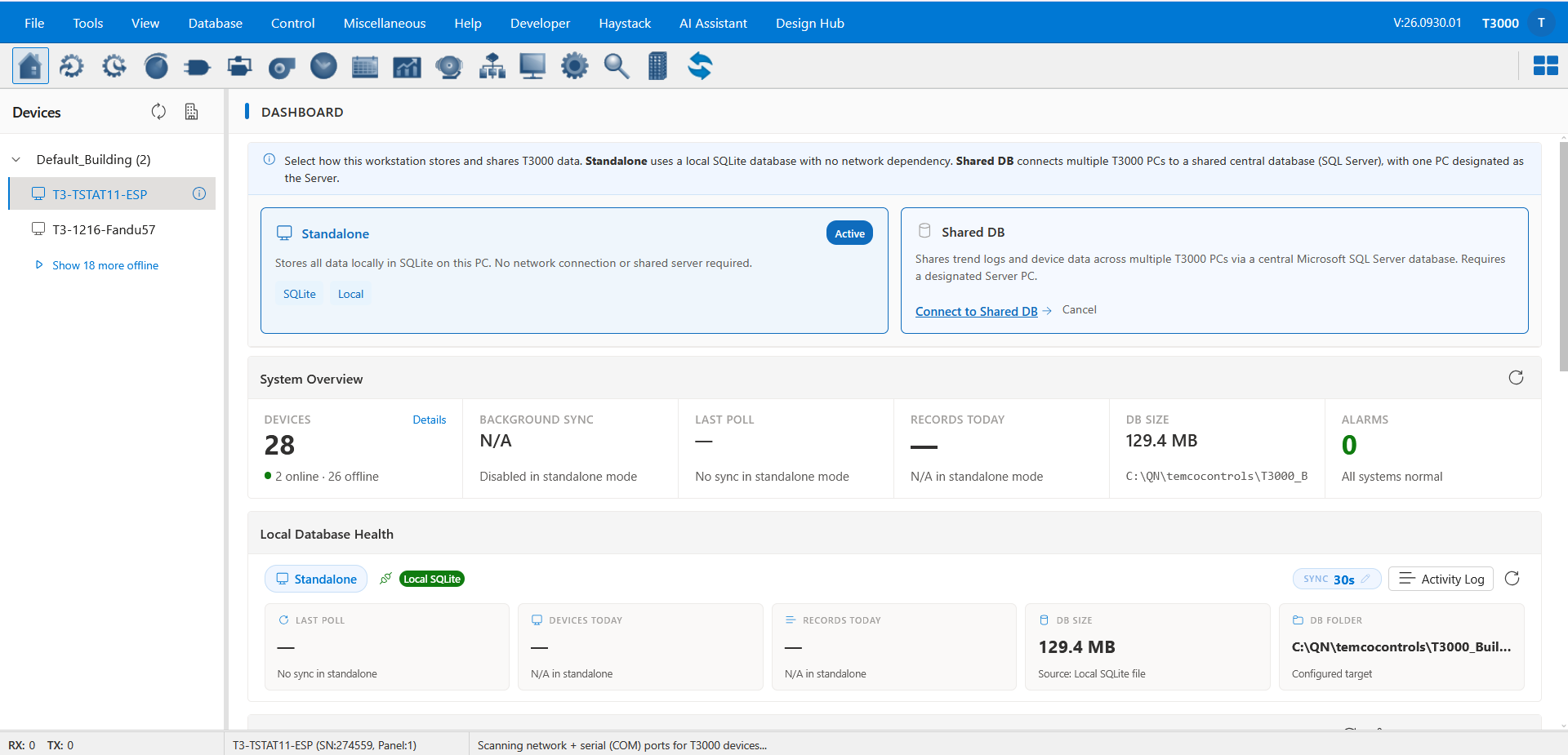
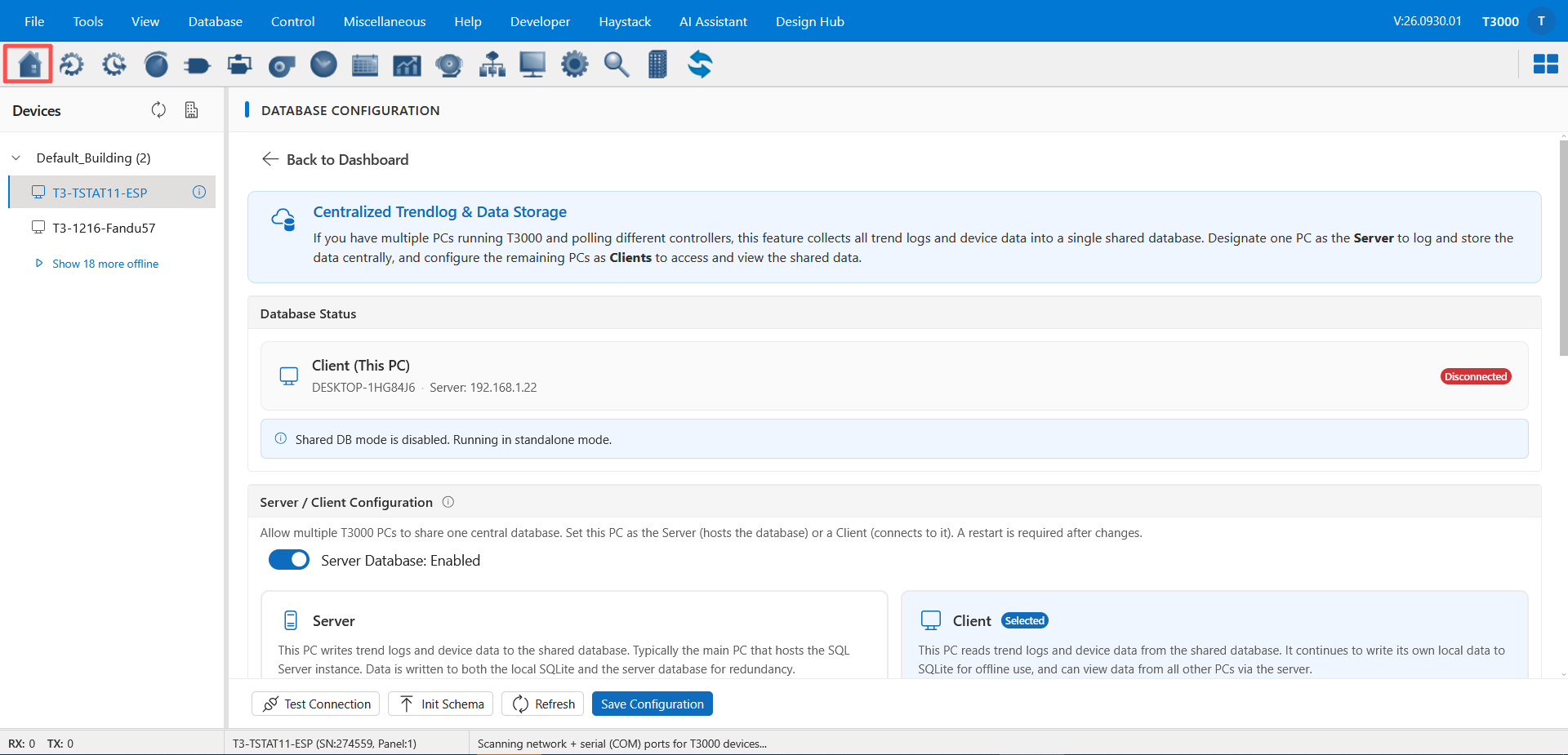
Docs: Shared Center DB — install: SQL Server Express setup, configure: T3000 Center DB configuration. In the beta: Documentation ▸ Shared DB.
4. Where the detailed documents are
They are built into the beta itself — open http://localhost:9103/#/t3000/documentation (or Help ▸ Documentation in the menu) and pick the chapter named in each section above. The same pages are in the GitHub repository: the T3000 documentation folder.
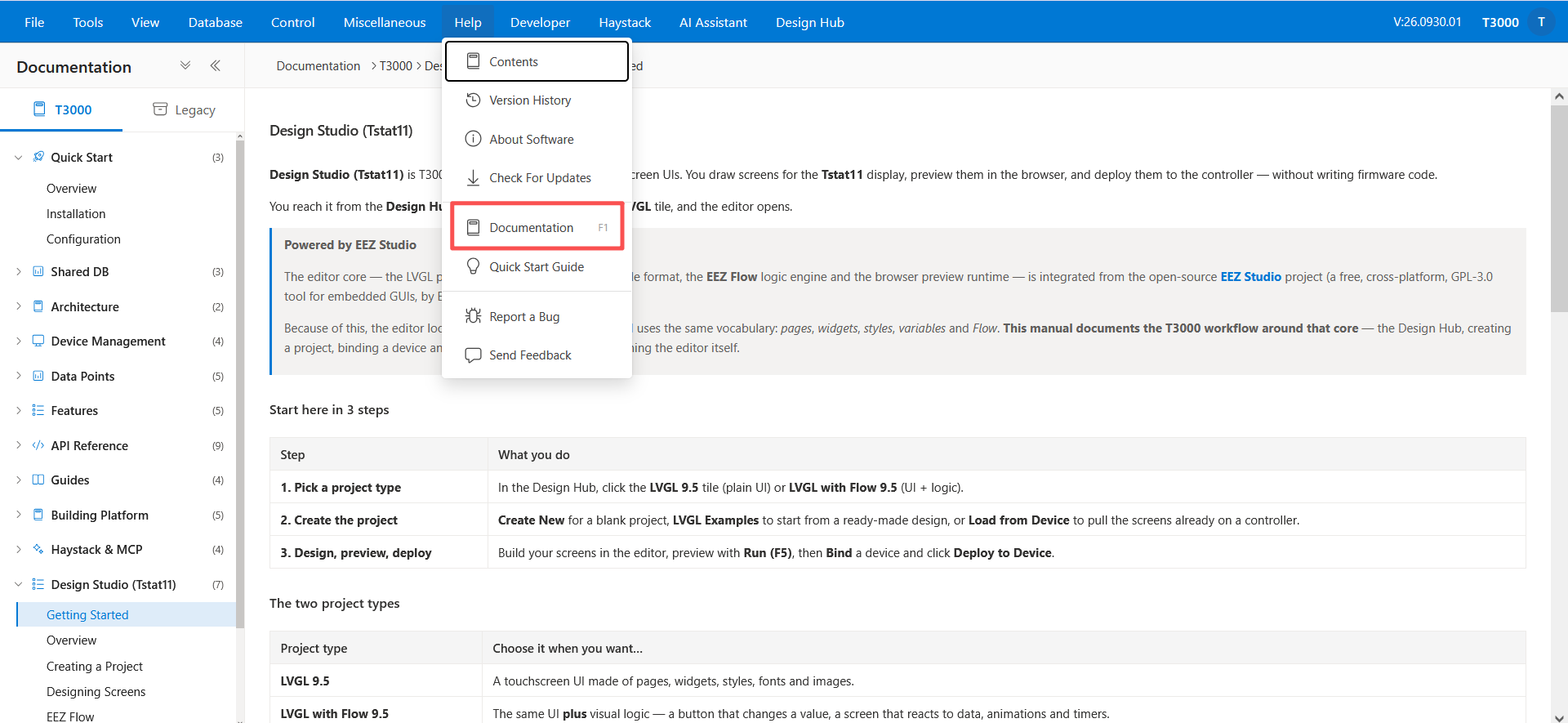
5. What we would like you to look at
- Does it open on your PC, and does the Windows icon bring the T3000 window back?
- Are your devices, names, buildings and floors correct?
- Are values, units and writes to the device correct?
- Anything that feels slow, hangs on a spinner, or looks wrong in your browser or on your screen.
6. Known limitations of the beta
- Beta quality: some pages are still being finished, and a few screens still have no new page.
- The new interface uses a browser profile of its own for T3000 — so sign-ins, extensions and bookmarks from your normal browser profile do not apply.
- Please keep using the T3000 window for anything critical; nothing is removed by installing the beta.
7. Feedback, and what comes next
Comments are welcome at any time — anything you notice, from a wrong value to a page that is still missing, is useful to us. A screenshot or the version number makes a problem easier to reproduce, and everything posted in this thread reaches the team.
After the beta we will publish an official release and continue with our normal updates from there, announced here. Thank you for trying it.